Kit Tags and Segments on the Free Plan (Tag From a Form)
Kit tags and segments on the free plan: no auto-tag rule, so we tagged from the form itself, built five segments and excluded test subscribers.
Tags and segments are how you send the right email to the right people in Kit. In this guide we set them up on WorkCue's real Kit account, on the Kit Free plan, on October 10, 2026. We wanted three things:
- Know where each subscriber signed up (our newsletter form or our free checklist landing page).
- Know what they're working on, so a future email about proposals doesn't go to someone who only cares about selling a course.
- Quote real numbers, with our own test signups taken out.
The obvious way to do part 2 is "when someone joins this form, add this tag". On the free plan that's not available to us. Below is what Kit's own help pages say, the workaround we used (a tag field on the form itself), five segments, and the gotchas we hit.
Real numbers: at 1:58 PM PT on October 10, 2026, our Kit list had 4 subscribers, all of them our own labelled tests, so 0 real subscribers. That's why the segments below show tiny counts. They're real counts.
Why "tag everyone who joins this form" isn't free
Kit's help page on automatic tagging is direct: "Kit gives you two ways to automate it: 1. A Visual Automation 2. A Rule" (How to automatically tag subscribers). A form's own settings have no tag option. We checked ours: the tabs are General, Domain name, Confirmation email and Advanced, and none of them adds a tag.
On the free plan, both of those routes sit behind an upgrade:
- Kit's free plan page lists "Rules and RSS campaigns" and "Visual automations and the automation template library" among the features that need a paid plan. It also lists "Audience tagging and segmentation" as included.
- In our account, the Automation menu carries a paid badge, and the Visual Automations page shows "You're on a free plan. Upgrade to the Creator plan to unlock Visual Automations & more." (seen October 7, 2026).
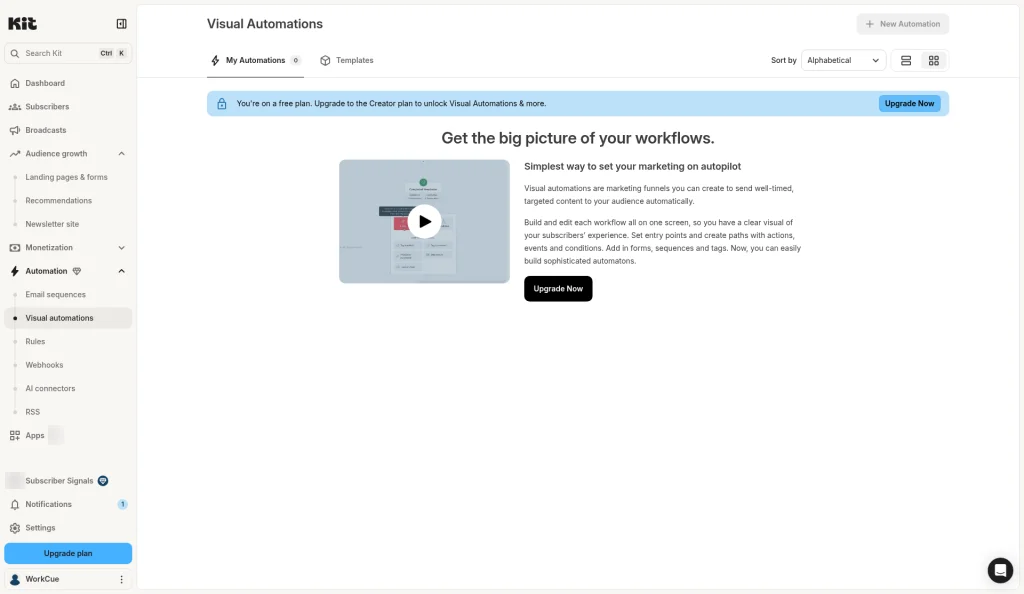
So tags and segments are free, but the automation that usually applies tags isn't. Two free ways remain: let subscribers tag themselves on the form, and use segments for anything Kit already knows (like which form someone used).
Before you start: clear out old tags and segments
Our account had one tag and one segment left over from an earlier demo, both with 0 subscribers. We deleted them first so the counts later would be clean.
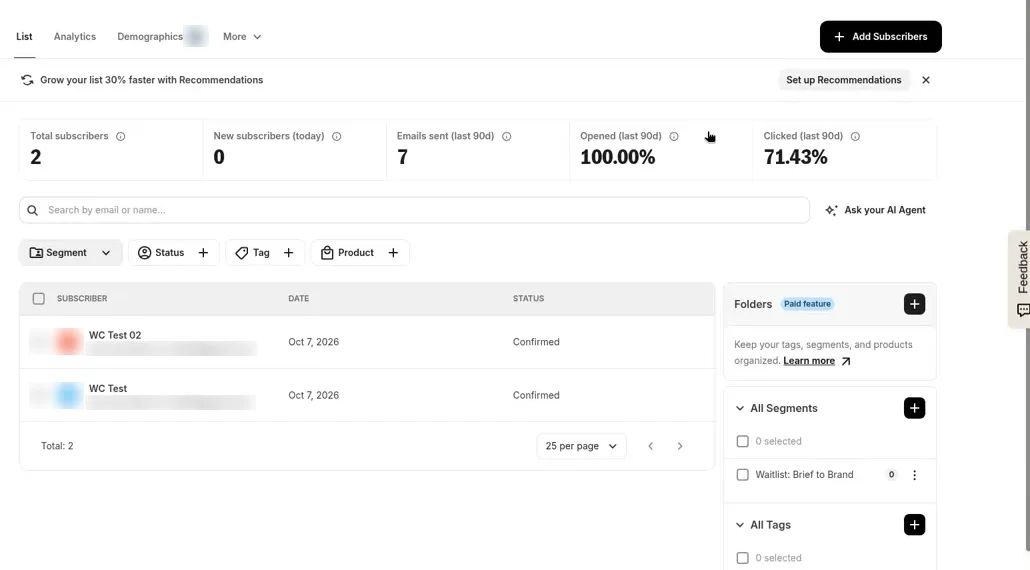
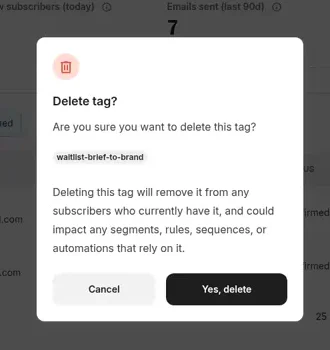
Two things to know about deleting, from Kit's own confirmation dialogs:
- Deleting a segment "won't remove any subscribers", but "any broadcasts, automations, or sequences using it will be affected".
- Deleting a tag "will remove it from any subscribers who currently have it, and could impact any segments, rules, sequences, or automations that rely on it".
Tip: Kit's subscriber list defaults to "Status is Confirmed". Clear that filter before you count anything, or unconfirmed signups won't show.
Step 1: Create the tags
Go to Subscribers, then click the + next to All Tags in the right sidebar. The "Create tag" dialog has one field, "Tag name", limited to "Up to 50 characters". We created:
interest-proposalsinterest-coursesinternal-test(only for our own test signups, more on this below)
Lowercase with a prefix keeps related tags together in the list. You can also create tags right inside the form editor in the next step.
Step 2: Let subscribers tag themselves with a "Save as: Tag" field
This is the free workaround. Kit's help page Adding tag dropdowns + checkboxes to Kit forms describes it, and it works the same on forms and landing pages.
We used our newsletter form, which isn't embedded anywhere on our site yet, so the change wouldn't alter what anyone else had signed up for. The form's confirmation email and success message stayed exactly as they were.
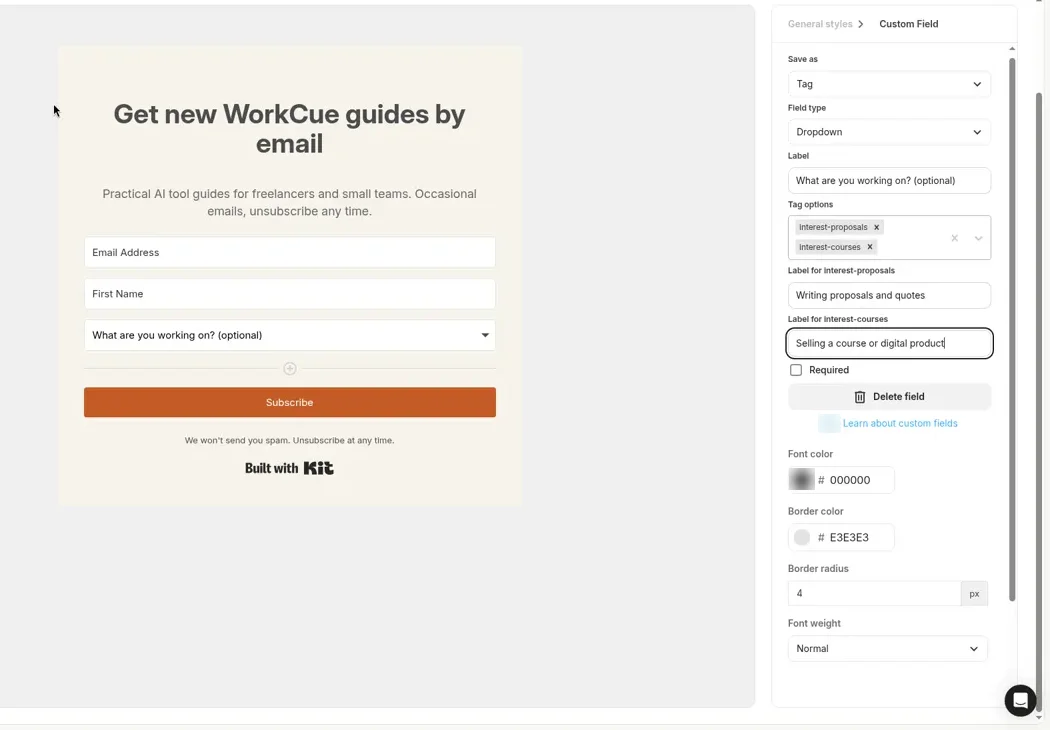
- Open the form in the editor and click Add Custom Field (the + under the existing fields).
- Click the new field. In the right panel, set Save as to Tag (the only other choice is Custom Field).
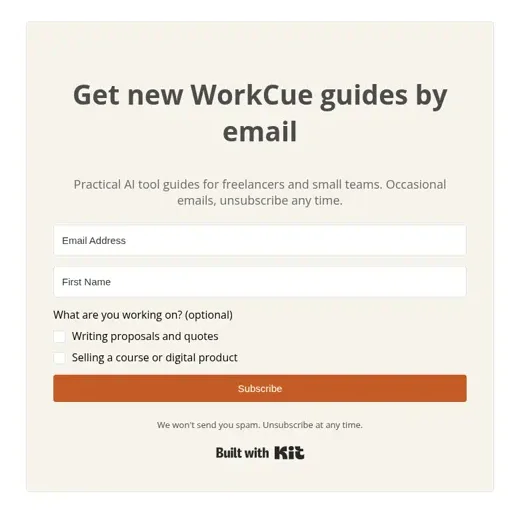
- Set Field type to Checkboxes. The other choice is Dropdown.
- Label:
What are you working on? (optional) - Tag options: pick
interest-proposalsandinterest-courses. - Kit then shows one label box per tag. This is what subscribers see, so write it for them:
interest-proposals> "Writing proposals and quotes"interest-courses> "Selling a course or digital product"
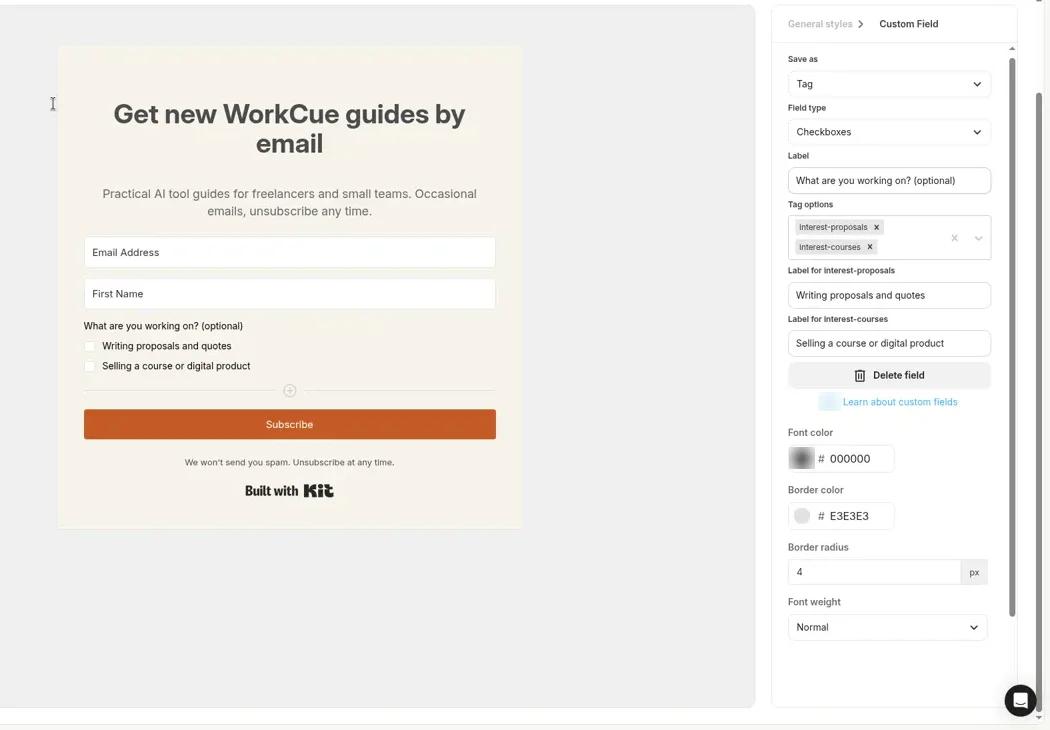
Checkboxes or dropdown? Checkboxes let someone pick both. A dropdown allows one choice, and it's the only type that shows a Required box. With Checkboxes selected, Required disappears. Neither type lets you pre-tick an option, which is good: interest should be the subscriber's choice.
- Click Save & Publish. Kit's message: "Your form has been published! It may take a few minutes to see your changes live." For us the hosted form page showed the new field about a minute later.
To undo it: click the field, click Delete field, then Save & Publish. The tags stay in your account until you delete them separately.
Step 3: Test it with your own addresses
We signed up two labelled test addresses (plus-addresses on our own Gmail):
- Test 06 on the newsletter form, ticking "Writing proposals and quotes" only.
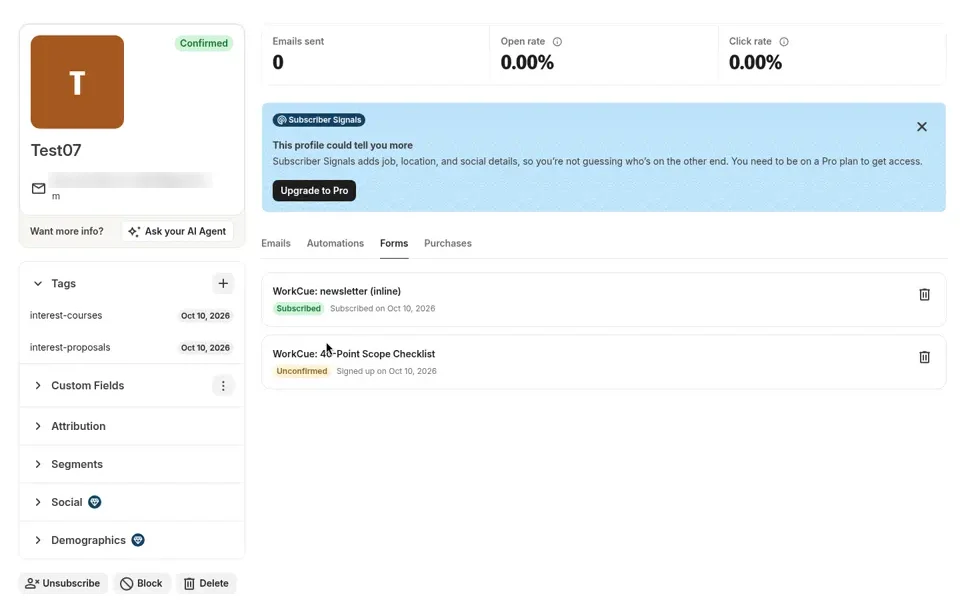
- Test 07 first on the checklist landing page, then on the newsletter form, ticking both boxes.
All three confirmation emails arrived in the Gmail Inbox from our own sending domain (set up in our verified sending domain guide).
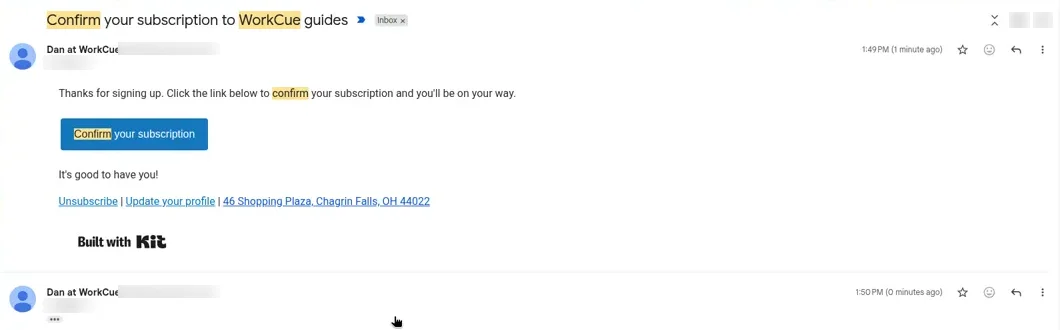
What we saw, which isn't obvious from the help pages:
- Tags are added before the subscriber confirms. At 1:51 PM PT both tests had their interest tags while still "Unconfirmed". If you send to a tag, unconfirmed people won't get the email, but they do count toward the tag.
- Confirmation is per form. Test 07 confirmed the newsletter email, yet its landing page signup still showed "Unconfirmed" until it clicked that page's own confirmation email.
- Signing up again sends another confirmation email if the person hasn't confirmed yet.
- reCAPTCHA can appear on repeat signups. Our third hosted-form signup from the same browser in about two minutes got "One more step / Please complete this security check to subscribe."
- Sidebar tag counts lag. The interest tags still showed 0 in the sidebar at 1:58 PM PT, while the subscriber profiles and the segment builder already showed them. Kit's help says counts "may take a few minutes" to update.
Step 4: Mark your own tests so you can leave them out
If you test with your own addresses (you should), they'll inflate every count. We tagged all four of ours with internal-test:
- On Subscribers, tick only your test rows.
- Open the bulk actions menu and choose Add tag, then
internal-test.
Kit's dialog warns: "Tagging subscribers here will trigger automation rules and automations." We have none, but if you do, pause them first.
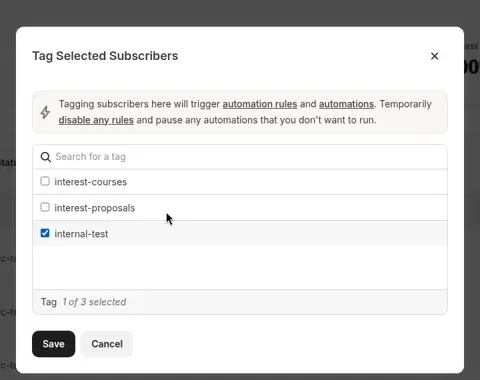
Step 5: Build the segments
A segment is a saved filter, and its members update automatically. Click the + next to All Segments. Kit's segment help recommends segments over a catch-all tag for "who signed up where", because the filter can't go stale. We built five. The counts are from the segment builder at 1:54 to 1:57 PM PT and were the same when we checked again at 1:58 PM PT.
| Segment | Filter | Count |
|---|---|---|
| Source: scope checklist | Matching all: Subscribed to the landing page | 2 |
| Source: newsletter form | Matching all: Subscribed to the newsletter form | 3 |
| Interest: proposals | Matching all: Subscribed to tag interest-proposals | 2 |
| Real subscribers (no tests) | Group 1: All Subscribers. Group 2, Matching none: tag internal-test | 0 |
| Checklist + proposals (no tests) | Group 1, Matching all: landing page AND tag interest-proposals. Group 2, Matching none: tag internal-test | 0 (1 before the exclusion group) |
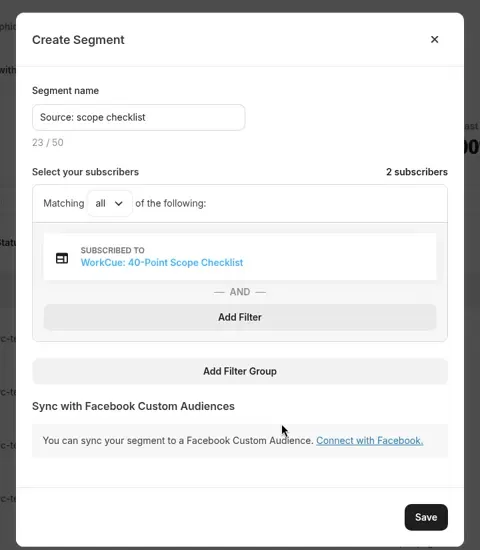
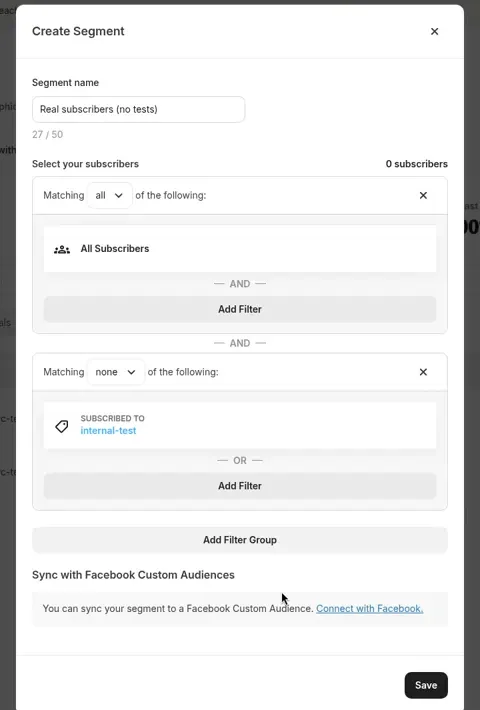
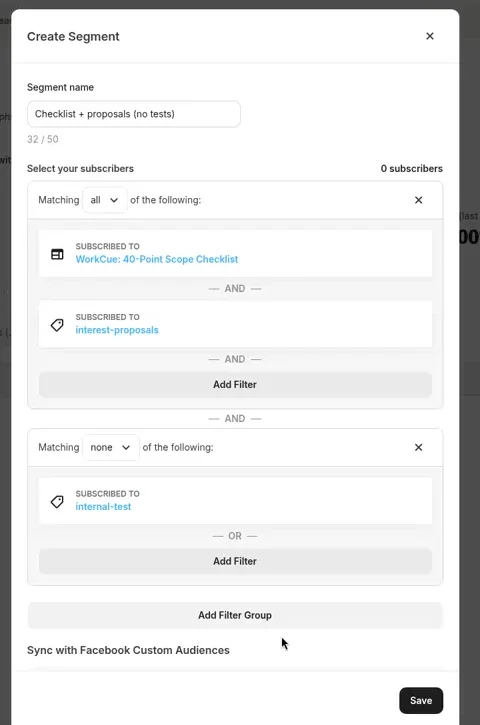
Things to know about the segment builder:
- Landing pages are listed under "forms". There's no separate landing page type. The list also has two built-in entries, "Creator Network" and "Newsletter site".
- A new filter group defaults to "Matching any". Change it to all or none as needed.
- Inside one filter, choices are OR. Kit's help says "The logic within any single filter is always OR."
Where we stopped: no broadcast
We wanted to show the recipient count inside a draft broadcast without sending anything. Kit doesn't allow that. After you write a broadcast and click Continue, Kit asks "Choose where you would like to publish this Broadcast to": Send email or Add to your Newsletter site ("Appears as a public post on your newsletter site"). Continue stays greyed out until you tick one, and the recipient filter only comes after that choice.
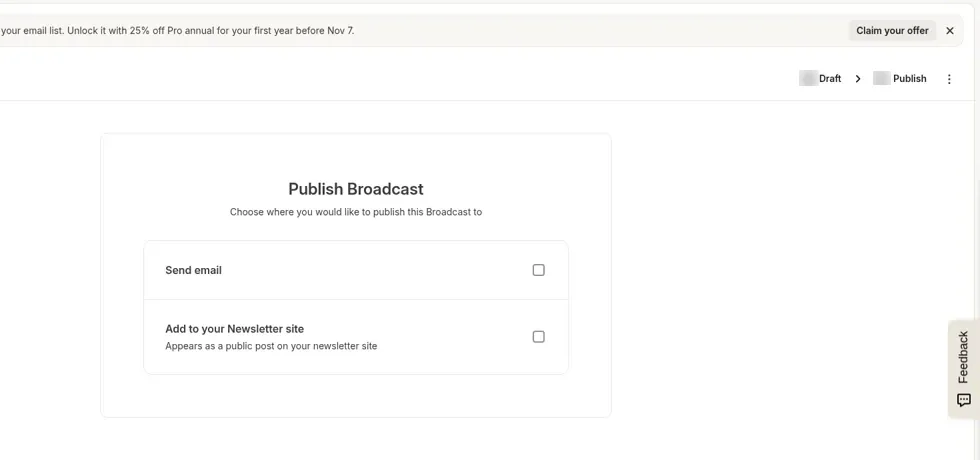
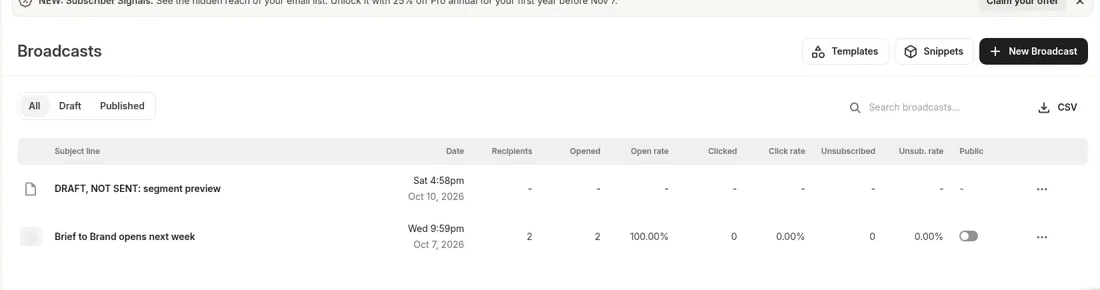
So we left the draft unsent and used the segment builder's live count as our preview. Kit saved the draft on its own ("Draft last saved on Sat, Oct 10, 2026 at 4:58pm Eastern Daylight Time", which is 1:58 PM PT; Kit shows times in the account's Eastern time zone). No email went to anyone.
Recap
- Kit Free includes tags and segments. It doesn't include the rules or visual automations that tag people automatically when they join a form.
- Free workaround for interests: a form field set to Save as: Tag. Use checkboxes for "pick any" (always optional) or a dropdown for "pick one" (can be required).
- Use segments for source, not tags. "Subscribed to" a form or landing page is always up to date.
- Tag your own tests and add a Matching none group, so the numbers you quote are real. Ours: 0 real subscribers at 1:58 PM PT on October 10, 2026.
- Watch for: tags added before confirmation, confirmation per form, counts that lag a few minutes, and Kit times shown in your account's time zone.
Next in the series, we'll use what people actually ask to decide what to build next. If you haven't set up Kit yet, start with the Kit free plan setup guide.
Related guides
Kit Free Plan Setup: Sender, First Form, Test Subscriber
Kit free plan setup on a real account: signup, what the plan includes, sender and address, a first inline form and a test subscriber, plus gotchas.
Kit Lead Magnet Landing Page on the Free Plan
A Kit lead magnet landing page on the free plan: template, double opt-in that starts the download, confirmation email and an end-to-end inbox test.
Kit Emails in Spam? Verify Your Sending Domain
Verify a sending domain in Kit on the free plan with Cloudflare DNS: every SPF, DKIM and DMARC record we added, and a real before and after test.