Deliver a PDF lead magnet with a Kit landing page on the free plan
We built the Kit landing page that delivers WorkCue's free 40-point scope checklist, on Kit's free plan: the Beacon template, double opt-in that starts the download, the confirmation email, publishing and an end-to-end test that landed in the Gmail Inbox.
A lead magnet is a small free resource you give away in exchange for an email address. Ours is the 40-Point Freelance Scope Checklist, a 2-page PDF of yes-or-no checks to run before you send a proposal. In this guide we build the Kit landing page that hands it out, on Kit's free plan, exactly as we did for WorkCue on October 7, 2026.
The page is live at workcue.kit.com/38951dae0b, and the checklist page on our own site, /free-scope-checklist, links to it. Everything below is that real page: the template we picked, the copy we wrote, the settings we used, and one end-to-end test with our own labelled email address.
Real numbers: at the time of writing the list has 0 real subscribers. Our own test signup isn't counted. Any numbers we quote later will be real ones, including if they stay small.
We're not in Kit's affiliate program, so the links to Kit here are plain links and WorkCue earns nothing from them.
Before you start: send from an address on your own domain. In our earlier test runs, every Kit email sent from a free Gmail address landed in Gmail's Spam folder, confirmation and delivery emails included. A lead magnet that lands in Spam doesn't get delivered. Our verified sending domain guide shows how we fixed that on the free plan before building this page.
Step 1: Create a landing page
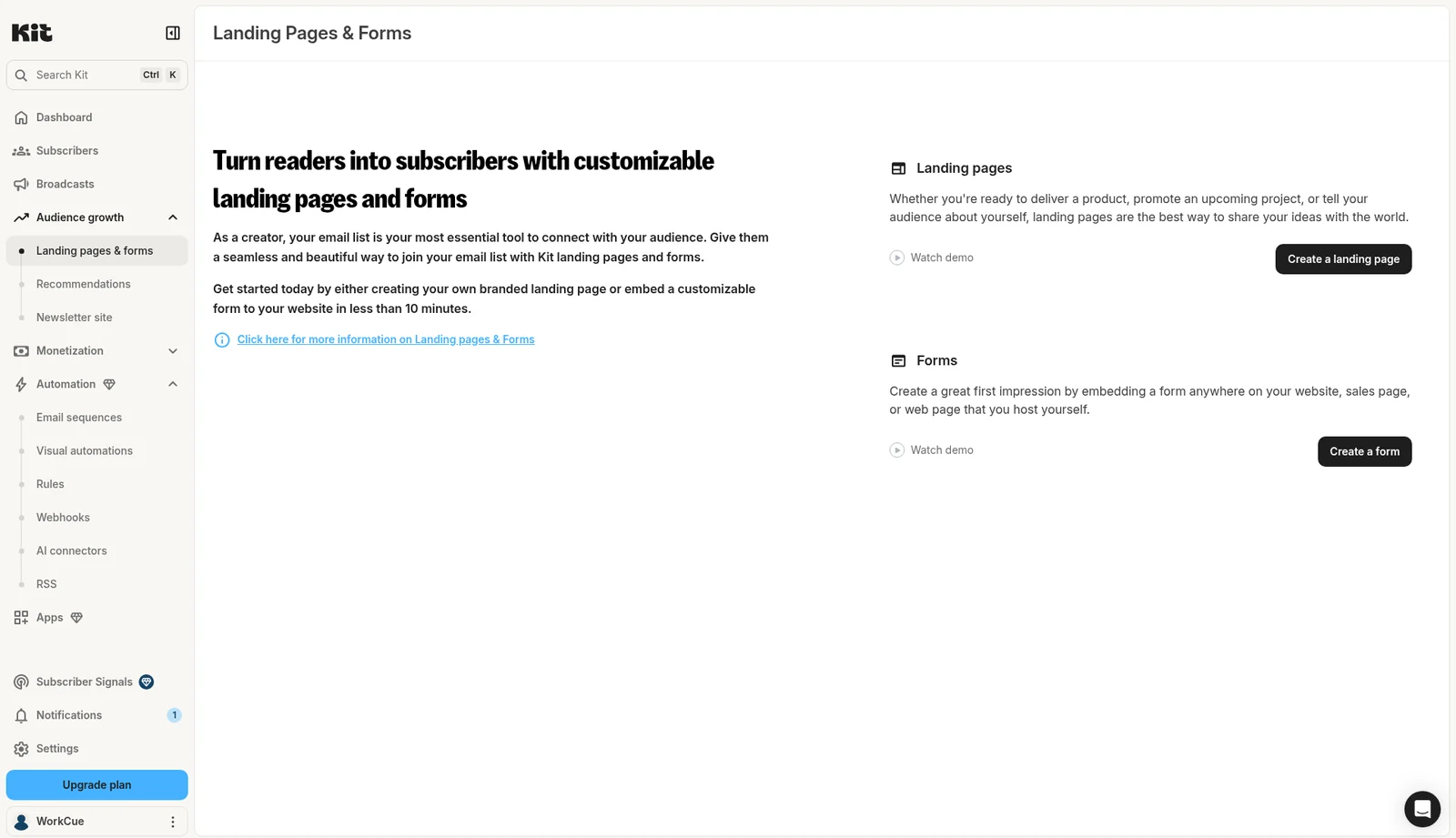
In Kit, go to Audience growth > Landing pages & forms. If you don't have any yet, Kit shows two cards, Landing pages and Forms. Click Create a landing page.
A landing page is a standalone page Kit hosts for you, so you don't need a website. A form is something you embed on a site you already have. We used a landing page so the signup works the same no matter where we link to it from.
Step 2: Pick a template (we used Beacon)
Kit opens Choose a template, with two tabs at the top right: Email capture and Product sales. Stay on Email capture.
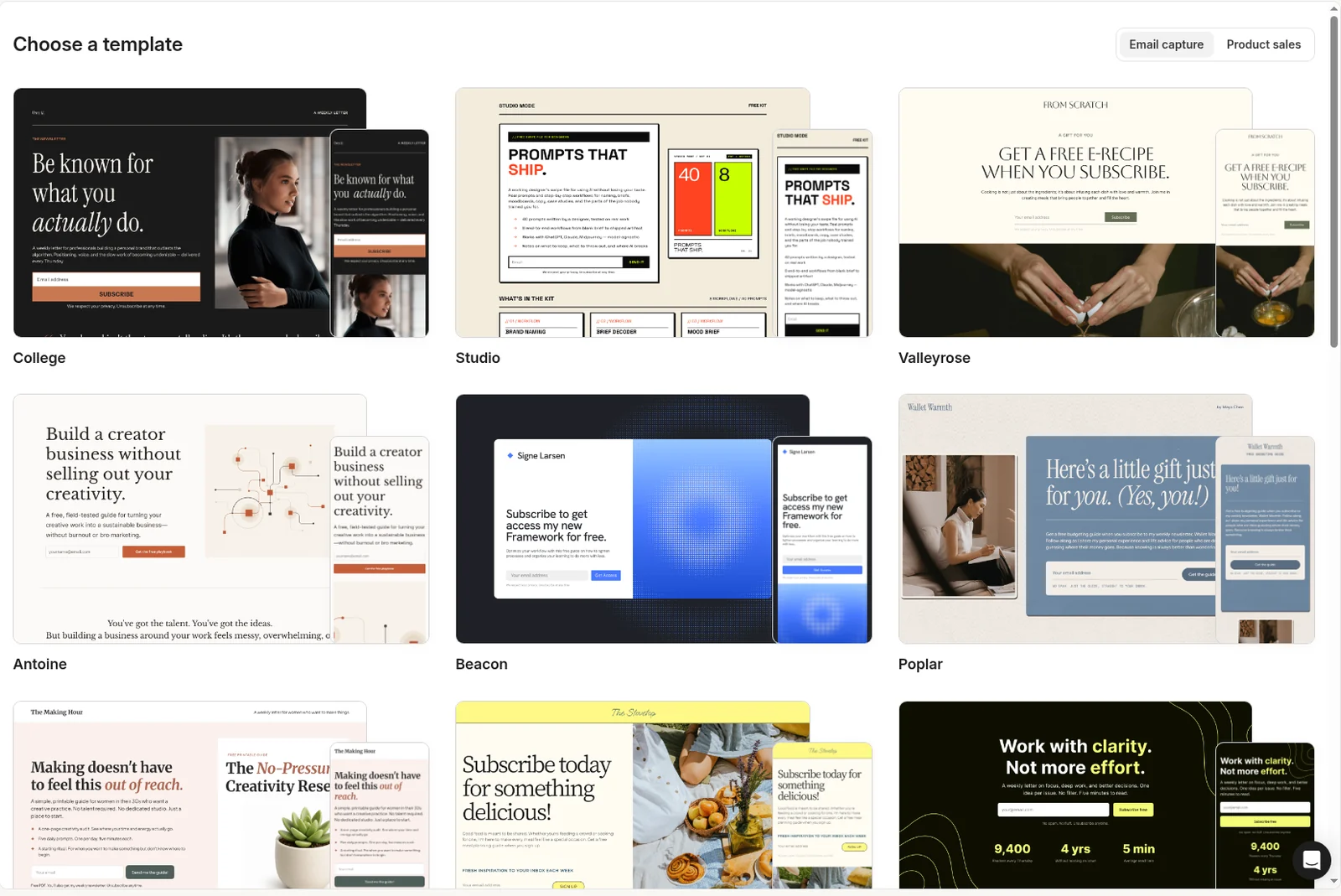
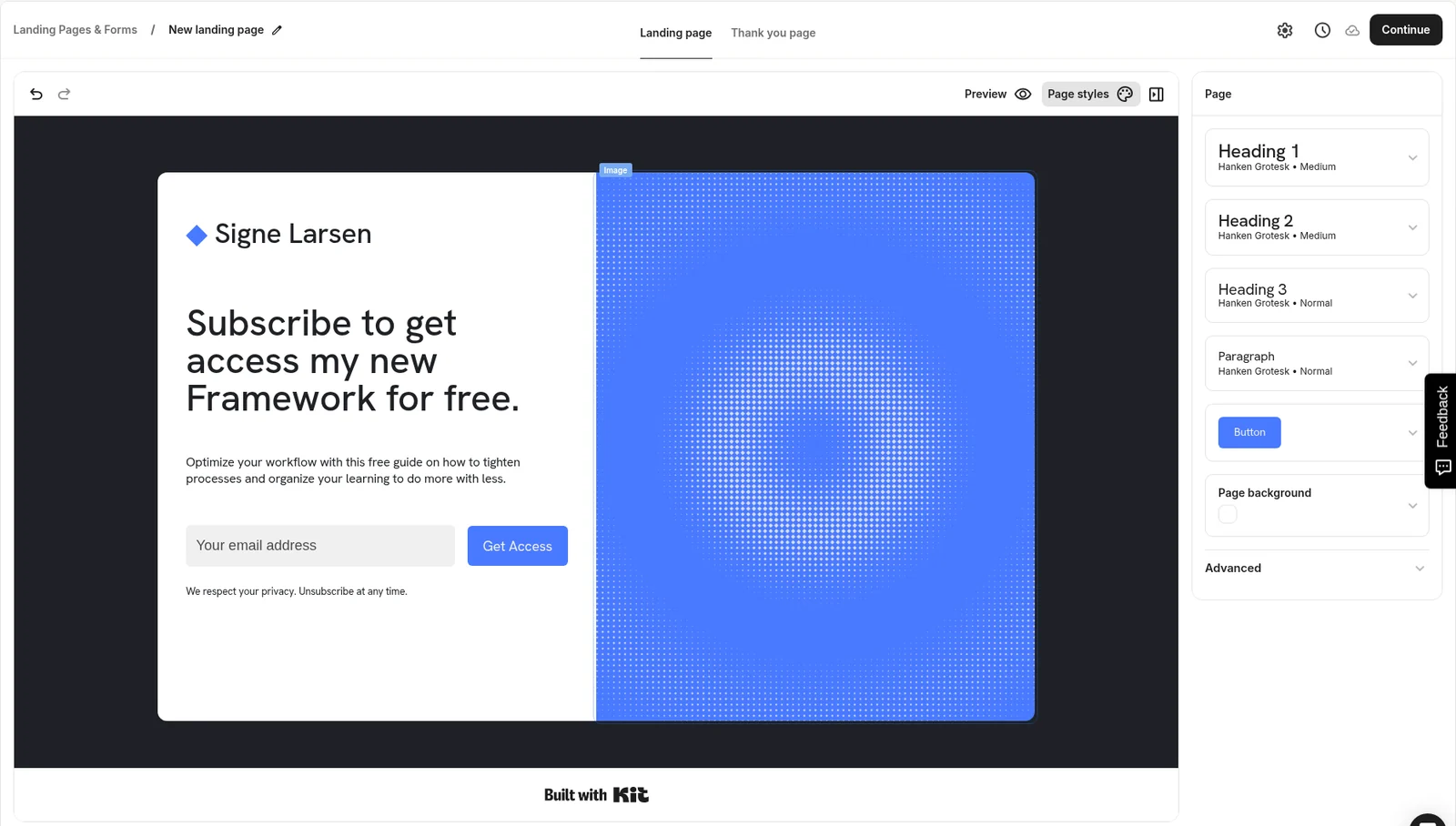
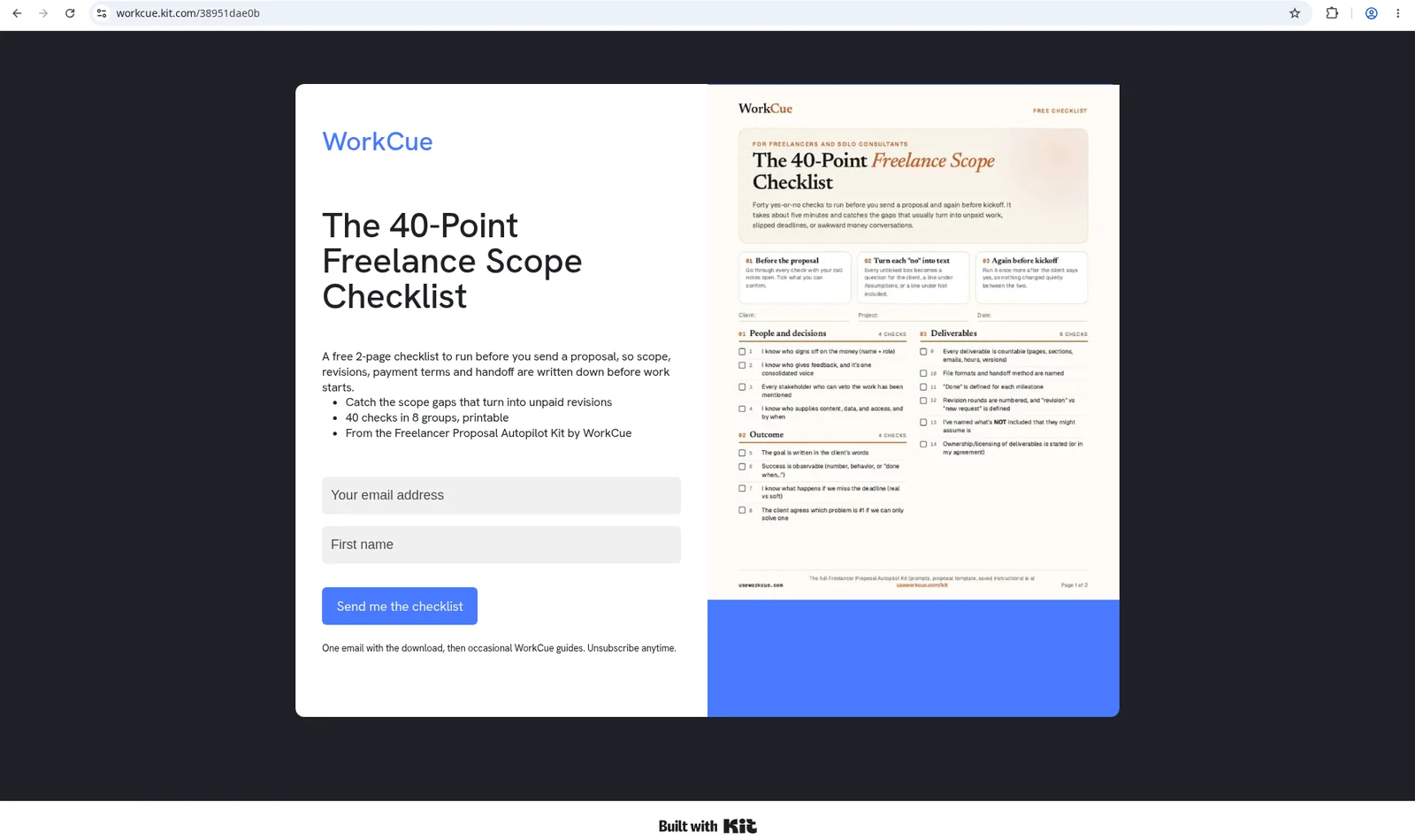
We picked Beacon. It's one screen with two columns: text and the form on the left, an image on the right. There are no testimonial blocks, stats or logo rows to fill in, and we didn't want any. We have no testimonials yet, and we don't make them up.
Here's Beacon before we changed anything, with Kit's placeholder brand line "◆ Signe Larsen" and a blue placeholder image:
Step 3: Write the page
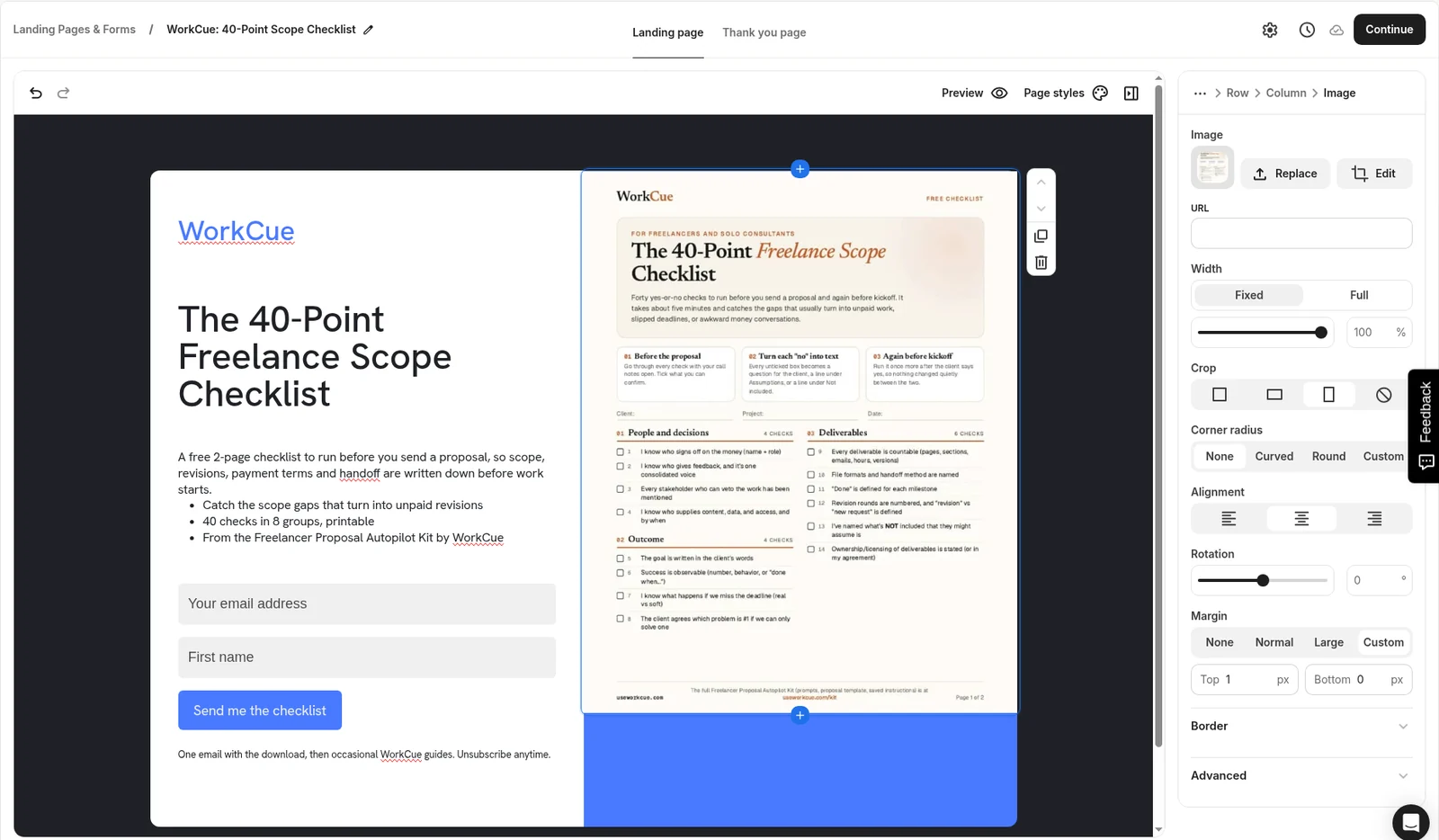
Click any text on the page to edit it. First, rename the page (the pencil next to "New landing page" at the top). Ours is WorkCue: 40-Point Scope Checklist. Subscribers don't see this name; it's how the page shows up in your Kit list.
What we changed, top to bottom:
- Brand line: replaced the placeholder "◆ Signe Larsen" with "WorkCue".
- Headline: "The 40-Point Freelance Scope Checklist". The name of the thing, not a slogan.
- Subhead: "A free 2-page checklist to run before you send a proposal, so scope, revisions, payment terms and handoff are written down before work starts."
- Three bullets: "Catch the scope gaps that turn into unpaid revisions", "40 checks in 8 groups, printable" and "From the Freelancer Proposal Autopilot Kit by WorkCue".
- Form: the email field, plus an optional First name field. Kit placed First name below the email field.
- Button: "Send me the checklist" instead of "Get Access".
- Small print: "One email with the download, then occasional WorkCue guides. Unsubscribe anytime." This tells people exactly what they're signing up for.
- Image: click the image, then Replace in the right panel. We uploaded a .webp image of the checklist's first page, and Kit accepted it.
Step 4: Deliver the PDF with double opt-in
Click the gear icon at the top right of the editor to open Landing page settings, then the Confirmation email tab. The tabs on our run were Domain name, Confirmation email, SEO & social share, Analytics integrations and Advanced.
On Confirmation email:
- Send confirmation email: on.
- Require double opt-in: on. Kit's own note says double opt-in "protects your list and your deliverability" and recommends leaving it on.
- After confirming, where do you want to send subscribers? Choose Start a download, then upload your PDF. Ours shows as
scope-checklist-40. - Click Save.
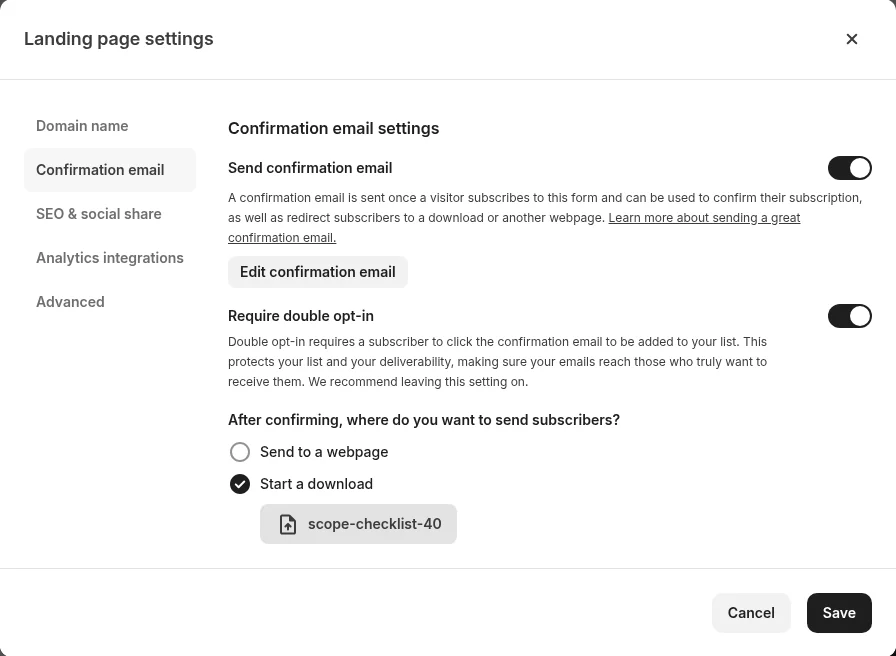
This is the whole delivery system. Nobody gets the file until they click the confirm button in the email, so it only goes to addresses that really receive mail. You don't need an automation or a sequence for this, which matters on the free plan.
Step 5: Write the confirmation email
On the same tab, click Edit confirmation email. This is the only email a new subscriber gets from this page, so it has to do two jobs: ask them to confirm, and promise the file.
What we set:
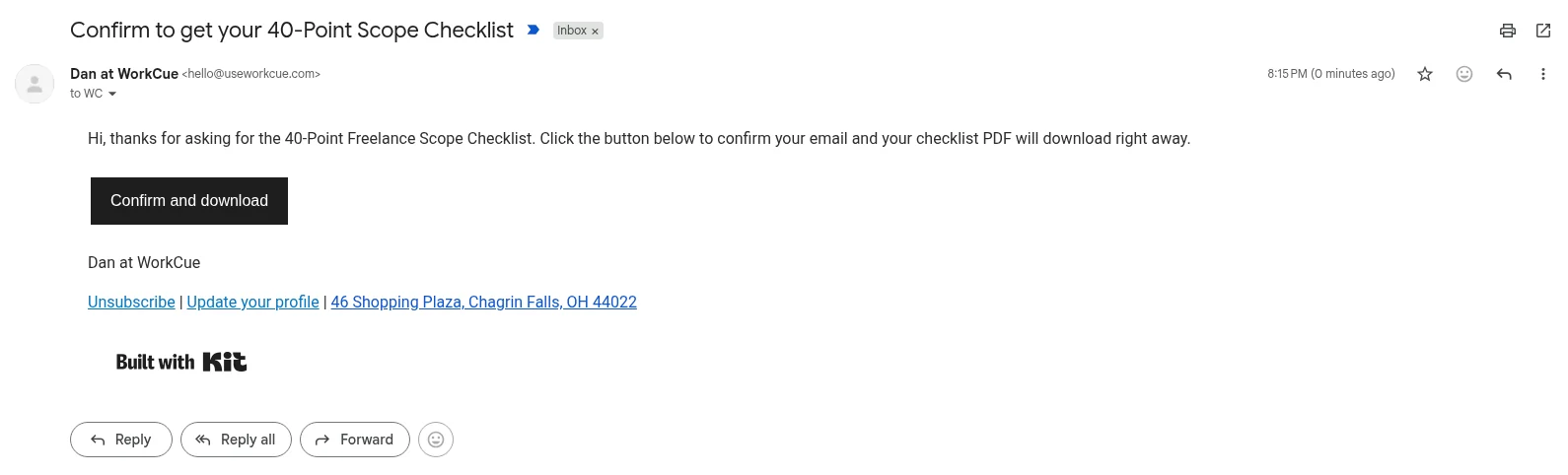
- Subject line: "Confirm to get your 40-Point Scope Checklist"
- From address:
Dan at WorkCue <hello@useworkcue.com>, our verified sender - Body: "Hi, thanks for asking for the 40-Point Freelance Scope Checklist. Click the button below to confirm your email and your checklist PDF will download right away."
- Button: "Confirm and download"
- Sign-off: "Dan at WorkCue"
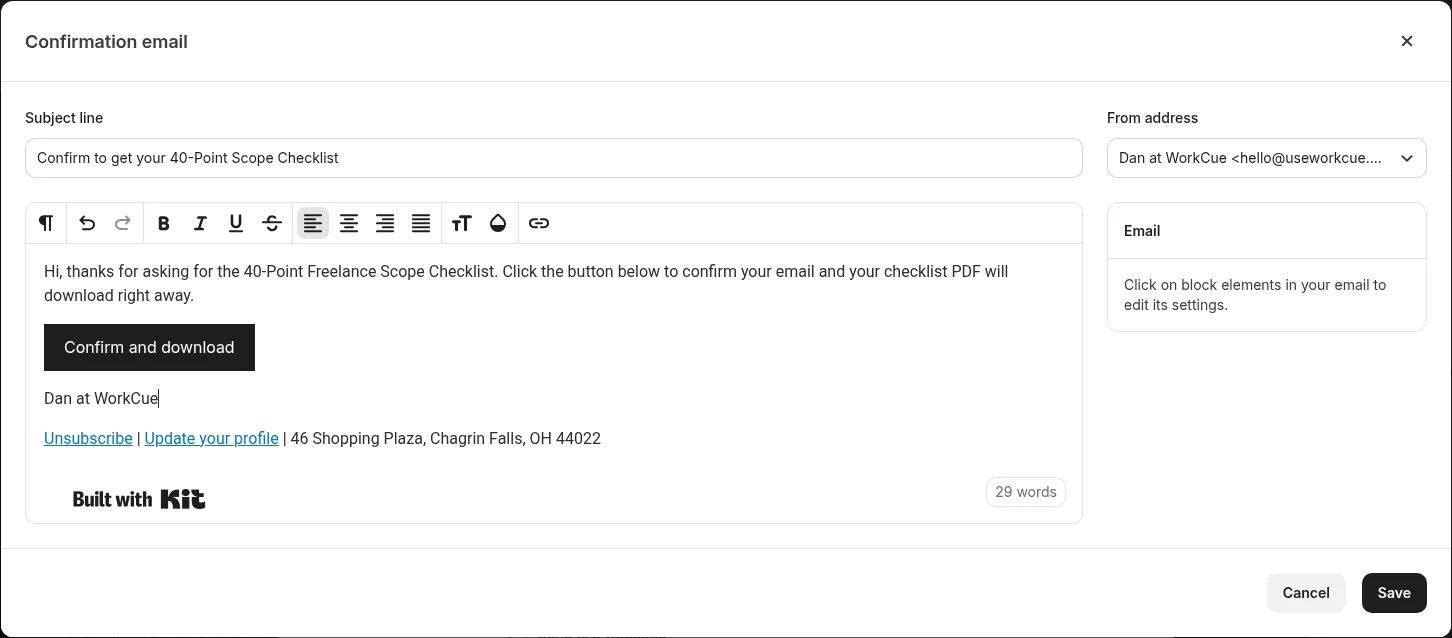
Two things Kit handles for you:
- The footer. Kit adds Unsubscribe and Update your profile links and the account's postal address automatically. Ours is our business address, 46 Shopping Plaza, Chagrin Falls, OH 44022, set once in Kit's email settings. Use a business address or PO box here, not your home.
- The confirm button can't be removed. When we tried deleting it, Kit stopped us with "A confirmation button is required on this email." You can change its text, but the email has to keep it.
Step 6: Set what people see after they submit
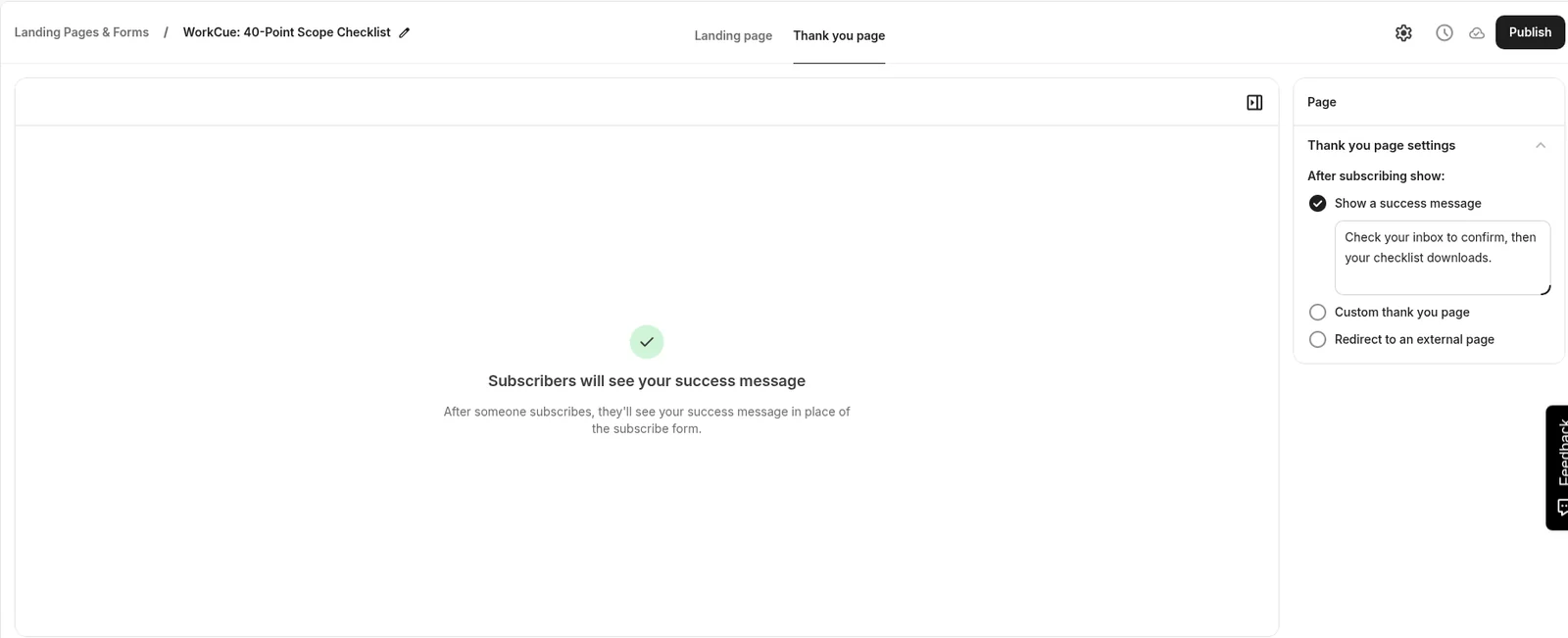
At the top of the editor, switch from Landing page to Thank you page. Under After subscribing show: you get three options: Show a success message, Custom thank you page and Redirect to an external page.
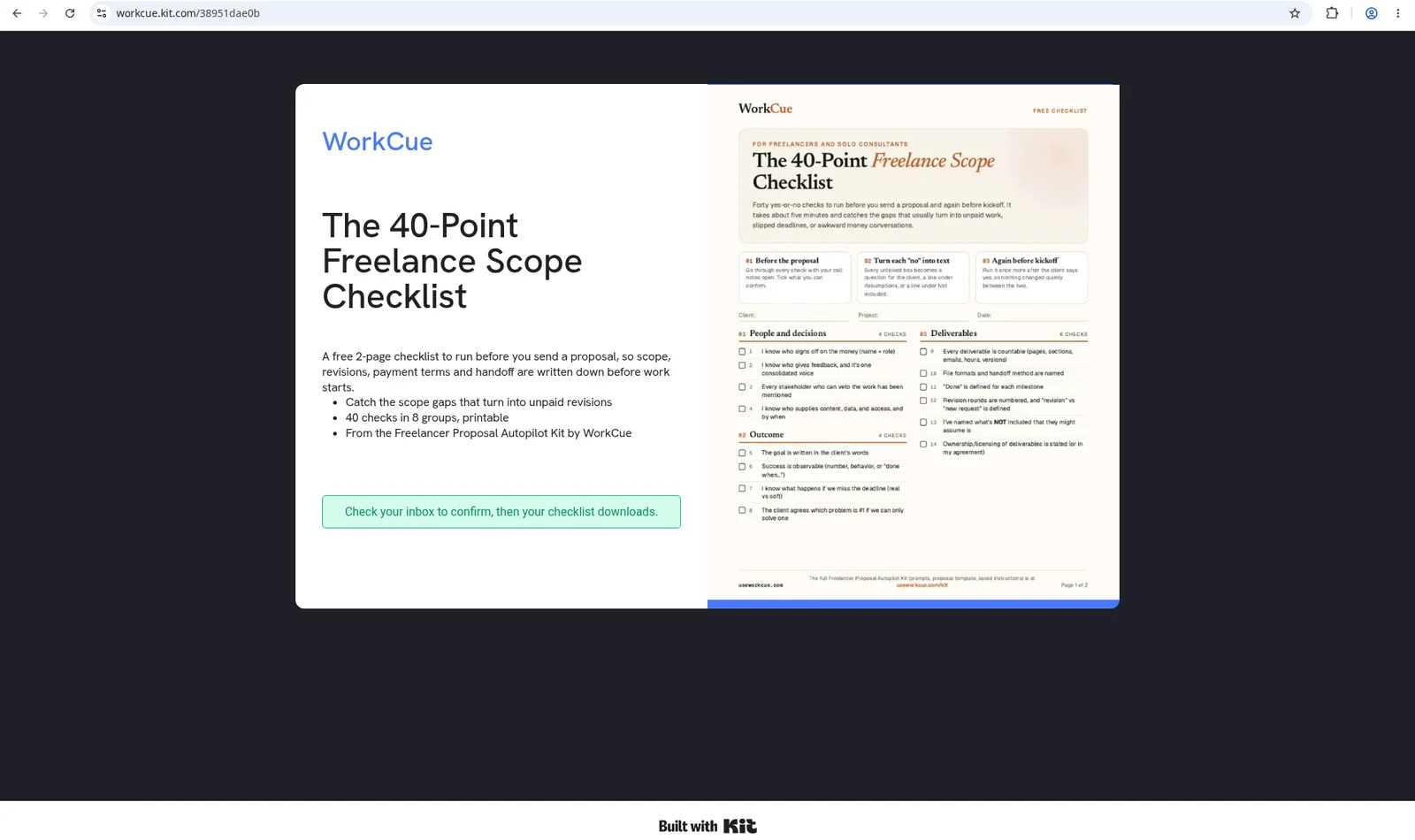
We kept Show a success message and wrote: "Check your inbox to confirm, then your checklist downloads." The message replaces the form on the same page, so people don't leave it.
Step 7: Publish
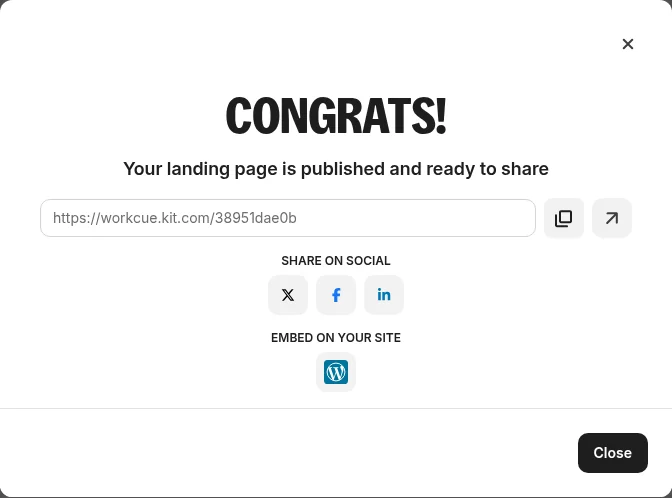
Click Publish. Kit showed a "CONGRATS!" dialog with the page's public URL, share buttons for X, Facebook and LinkedIn, and a WordPress option under "Embed on your site". Our URL is https://workcue.kit.com/38951dae0b. The subdomain comes from the Kit account; the code at the end is Kit's.
Here's the live page as a visitor sees it. The "Built with Kit" badge sits at the bottom, and it stays on the free plan.
Step 8: Test it end to end with your own address
Don't trust the editor preview; sign up on the live page yourself. We used a labelled Gmail alias of our own (+wc-test01) so the test is easy to find and easy to leave out of any numbers.
After submitting, the form was replaced by our success message:
The email arrived in the Gmail Inbox at 8:15 PM PT, not in Spam:

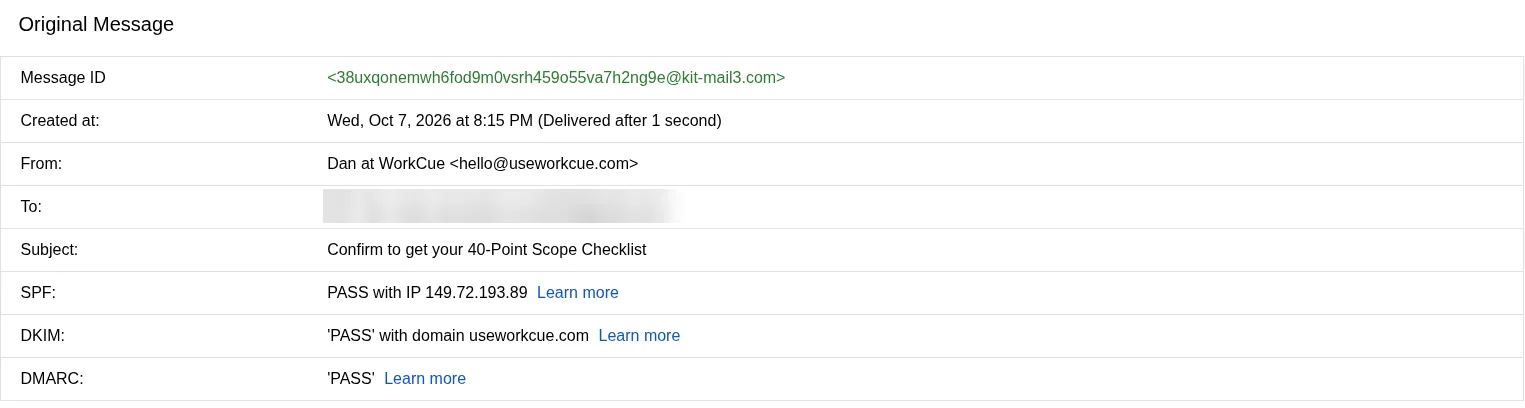
In Gmail's three-dot menu, Show original showed SPF PASS, DKIM PASS (useworkcue.com) and DMARC PASS. That comes from the sending domain setup, not from anything on this page. Without it, expect a free-address sender to struggle, as ours did.
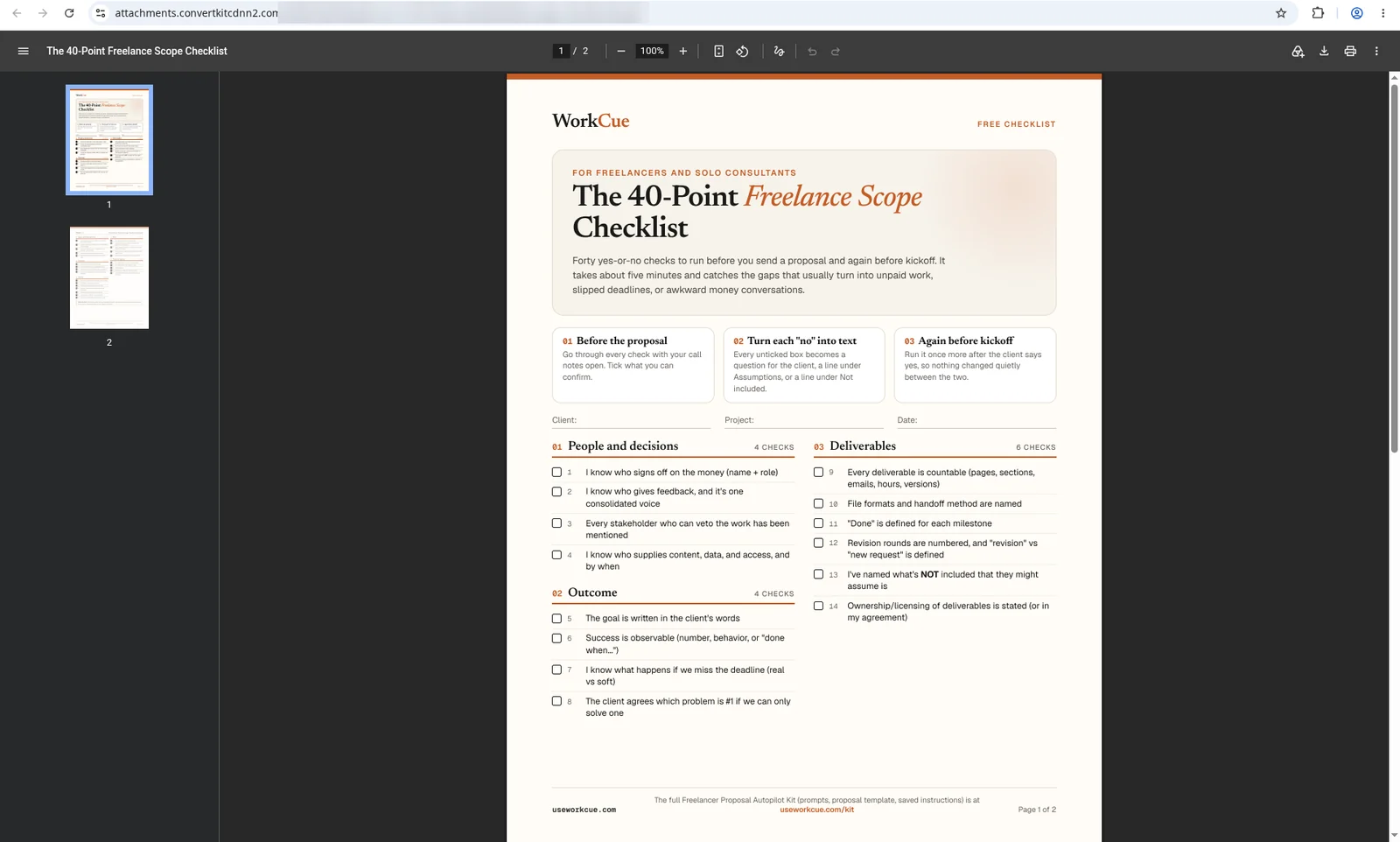
Clicking Confirm and download went straight to the PDF, with no thank-you page in between. It didn't save a file to our computer. It opened in Chrome's built-in PDF viewer, served from Kit's file host (attachments.convertkitcdnn2.com), where the reader can save or print it.
Gotchas and things to know
- "Download" may mean "opens in the browser". Our copy says the checklist "downloads", but in Chrome it opened in the PDF viewer. Other browsers and phones may behave differently. If that matters to you, word your success message and email as "opens" or "you'll get the PDF".
- Confirm goes straight to the file. There's no thank-you page after confirming, so there's nowhere to say thanks, point to your next guide or offer anything else. If you want that, choose Send to a webpage instead of Start a download and put the file link on your own page.
- The file sits on a public URL. The PDF is served from Kit's file host. Anyone who has the link can open it. We didn't test whether the link expires. For a free checklist that's fine; don't use this for anything you'd mind being shared.
- The page stats can lag. In an earlier test on Kit, the landing page card still showed 0 visitors and 0 subscribers after a confirmed signup. Don't judge a new page on its first hour.
- Test signups count until you remove them. Kit counts your own test addresses like anyone else. Label them (we use a
+wc-testalias) and leave them out of any numbers you report.
Recap
- One Kit landing page on the free plan, with double opt-in set to Start a download, delivers a PDF lead magnet with no automation. Only people who confirm get the file.
- Keep the page honest: a plain headline, what's in it, what they'll get by email, and no invented testimonials or numbers. Ours has 0 real subscribers so far, and we'll say so until that changes.
- Send from your own verified domain first. Our test landed in the Inbox with SPF, DKIM and DMARC passing; our earlier Gmail-sender tests all went to Spam. See the sending domain guide.
Want to see the result from the reader's side? It's live on our free scope checklist page.
Related guides
Set up Kit on the free plan: sender, first form and a test subscriber
How we set up WorkCue's real Kit account on the free plan: signup, onboarding, what the plan includes, the sender and mailing address, Recommendations, a first inline form and a test subscriber taken all the way to Confirmed, with the gotchas we hit.
Kit emails in Spam? Verify your sending domain (SPF, DKIM, DMARC)
We moved our Kit sender off a Gmail address and verified useworkcue.com on Kit's free plan, with Cloudflare's free DNS and Email Routing. Every record we added, what needs Kit Pro, and the before and after from one real Gmail test.
Create a free course on the Systeme.io free plan, with auto-enrolment
We built a real free 5-lesson mini-course on Systeme.io's Free plan, with an opt-in page that enrols people automatically and tags them. Every screen, the plan limits it used up, the login email our test signup got, and the gotchas we hit.